For digital nomads who travel constantly and rely on remote work, worrying about data leaks, sketchy Wi-Fi, and lost devices is a daily stress. You're juggling client deadlines, borders, and time zones, and the last thing you need is a hacked account or stolen work files. Our team helps remote workers build a practical cybersecurity toolkit that doesn't slow you down—so you can stay productive on the road while keeping your accounts, devices, and client data secure.
What is a cybersecurity toolkit for digital nomads?
A cybersecurity toolkit for digital nomads is a compact set of tools, habits, and configurations designed to protect your devices, accounts, and data while you move between homes, cafes, co-working spaces, and airports. It covers five core areas: secure remote access, identity protection, device hardening, travel security, and backup/recovery.
Think of it like the emergency kit you pack for flights, but for your digital life—so when something goes wrong you don't panic. Learn more about digital life. You want tools that are lightweight, cross-platform, and quick to use.
What should be in your cybersecurity toolkit?
Here's a prioritized list you can implement in hours, not weeks.
- VPN - For secure remote access on public Wi-Fi (choose no-logs, strong encryption).
- Password manager - Generate and store unique passwords; autofill saves time and mistakes.
- Multi-factor authentication (MFA) - Use authenticator apps or hardware keys for critical accounts.
- Disk encryption - Enable FileVault on Mac, BitLocker on Windows, or full-disk encryption on Linux.
- Secure backup - Encrypted cloud backup + local encrypted backup on SSD or NAS.
- Clean browser setup - Privacy extensions, separate work profile, and block trackers.
- Device hygiene - Regular OS and app updates, anti-malware scans where relevant.
- Physical travel security - Cable locks, RFID sleeves, and travel VPN-ready routers.
- Emergency plan - Lost-device steps, remote wipes, and a documented contact list.
Quick wins you can do today
Install a reputable VPN, set up a password manager, and enable MFA on email and cloud storage. That's 70 percent of the risk reduced fast. Seriously. Do this before your next trip.
How do I set up secure remote access while traveling?
Secure remote access is about two things: protecting the network path and authenticating you safely. Here's a step-by-step:
- Use a VPN - Connect on every public or unknown network. Choose providers that support OpenVPN or WireGuard and have a strict no-logs policy.
- Prefer SSH or VPN tunnels for services - If you access servers, use SSH keys with passphrases (not passwords) and disable password auth on the server.
- Use MFA everywhere—especially for remote desktop, cloud consoles, and email. Authenticator apps or hardware tokens are best.
- Limit admin access - Use least-privilege accounts for daily tasks; keep separate admin accounts for configuration.
Why? Because Wi-Fi at a hostel or airport is basically a hostile environment (honest). A VPN secures the path, SSH keys secure the server login, and MFA protects accounts even if credentials leak.
Which VPN, password manager, and MFA methods should remote workers choose?
There’s no one-size-fits-all brand, but choose by category and properties. Here's what to look for, and examples from tools I've seen used by hundreds of nomads.
- VPN - Look for WireGuard support, no-logs policy, good speed, and multi-platform clients. (Examples: ProtonVPN, Mullvad, and others—pick one you trust and that works in your destinations.)
- Password manager - Cross-device sync, strong encryption, secure sharing, and a zero-knowledge model. (Examples: Bitwarden, 1Password.)
- MFA - Use authenticator apps (TOTP) for most accounts, and hardware security keys (U2F like YubiKey) for your most critical logins (email, cloud providers).
From what I've seen, people who combine a password manager + TOTP + one hardware key sleep better. Really.
How do I stay safe on public Wi-Fi and coffee shop networks?
Short answer: assume the network is compromised and minimize what travels over it.
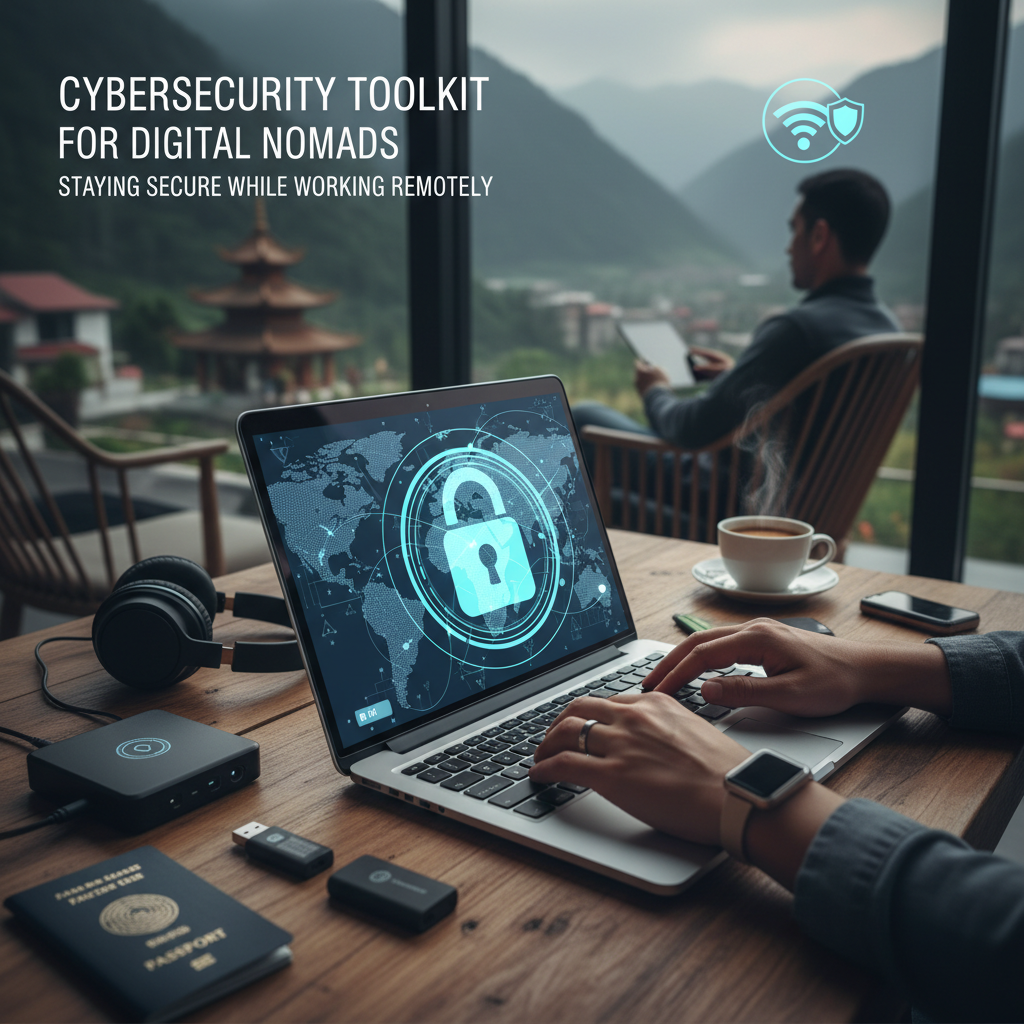
- Always connect via VPN. No excuses.
- Avoid accessing sensitive systems (banking, admin consoles) on public Wi-Fi even with a VPN if you can wait.
- Use your phone hotspot for sensitive tasks when possible (often more secure than a random Wi-Fi).
- Turn off file sharing, Bluetooth discovery, and network profiles that auto-join networks.
- Use HTTPS-only browsing and extensions that force secure connections.
And yes, the person next to you could be running packet capture for fun. So be cautious.
How should you protect devices and data while traveling?
Devices and data are the prize attackers want. Protect both physically and digitally.
Device hardening
- Enable full-disk encryption on every laptop and phone.
- Set strong device passcodes and use biometric locks where supported.
- Keep your OS and apps updated automatically (or check weekly).
- Limit admin/root accounts for daily work.
- Use a privacy screen in crowded places (makes shoulder surfing harder).
Data protection
- Encrypt sensitive files at rest with a strong passphrase (VeraCrypt, encrypted containers).
- Keep an encrypted cloud backup plus one offline encrypted copy (I recommend an external SSD in a travel-safe pouch).
- Use selective sync on cloud storage—don't sync everything to every device.
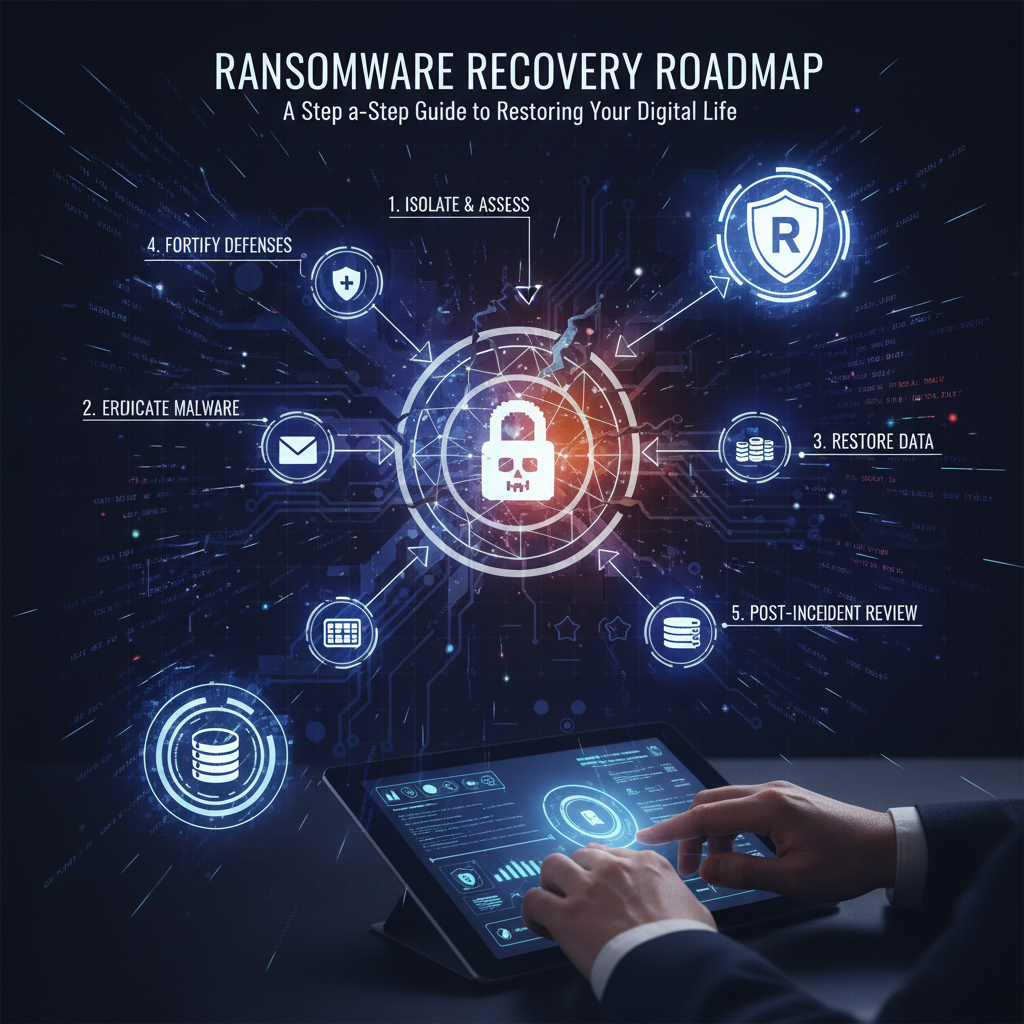
What to do if your device is stolen or compromised?
Have an emergency playbook and practice it. Here's a concise checklist to follow immediately.
- Change passwords for critical accounts from a trusted device (email, banking, cloud).
- Revoke sessions and log out remotely (Google, Microsoft, Slack, etc.).
- Trigger remote wipe if available (Find My, Android Device Manager, corporate MDM).
- Report theft to local police and your embassy if important documents were on the device.
- Inform clients if their data might be at risk (transparency builds trust).
How to balance convenience and security without slowing down work?
This is the art. You want security that fits your workflow, not the other way around. A few rules I use and recommend:
- Automate security wherever possible (updates, backups, password manager fills).
- Use device profiles or different browsers for work vs personal to reduce cross-contamination.
- Keep a small portable kit: one SSD, one hardware key, one spare phone with data-only SIM, and a compact router or travel hotspot.
- Document the steps for new device setup so you can hit the ground running in a new country.
So here's the thing about convenience: once it's set up properly, you won't notice it, but you'll be grateful when something goes sideways.
Travel security tips beyond the keyboard
Digital security and travel security overlap. Don't ignore the physical side.
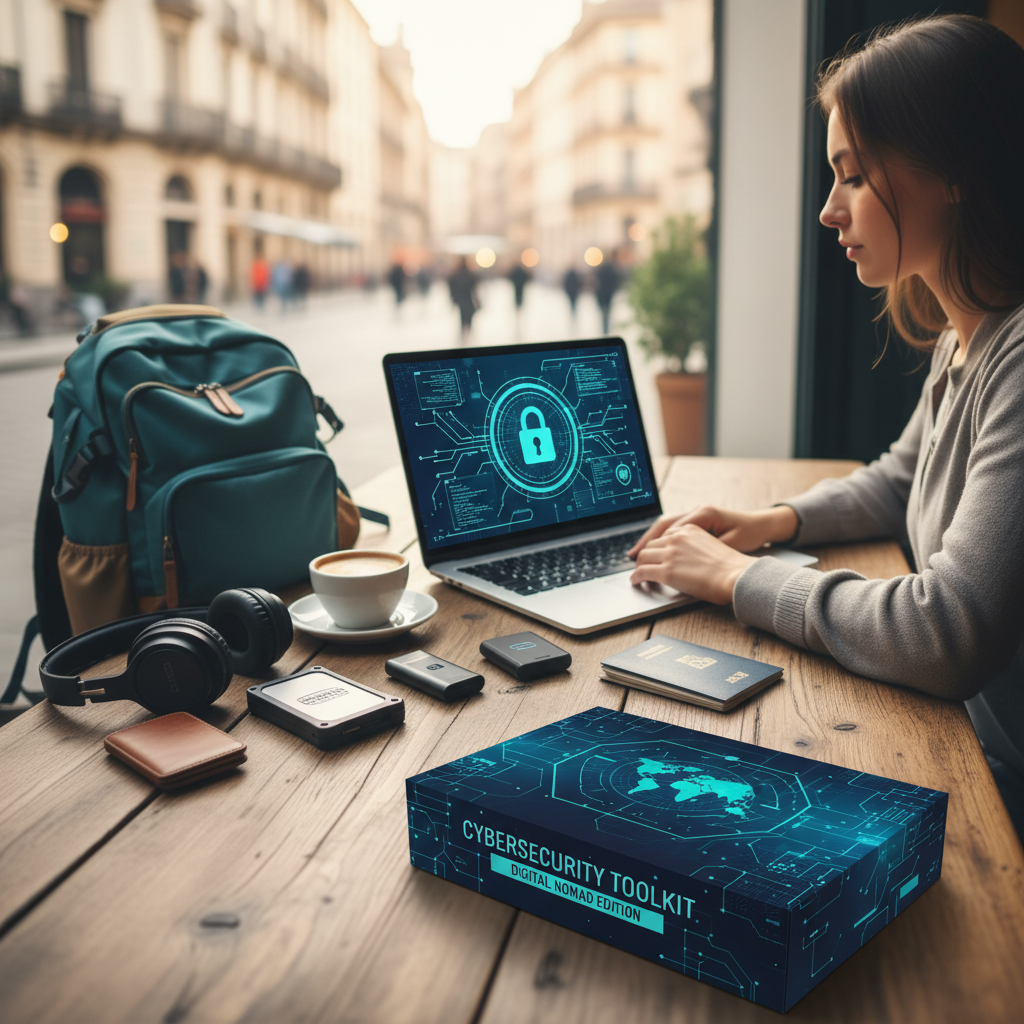
- Use a cable lock for laptops in shared spaces.
- Keep devices on your person or in a locked bag when possible.
- Use RFID-blocking sleeves for passports and cards if you're worried about skimmers.
- Carry a small travel router and connect to it, rather than random networks (it creates a private Wi-Fi you control).
Checklist: Build your cybersecurity toolkit in 48 hours
- Day 1: Install VPN, password manager, enable MFA on email and cloud services, set up device encryption.
- Day 2: Create encrypted backups, buy a hardware security key, configure auto-updates, document your emergency plan.
- Ongoing: Weekly check of updates and backup logs, monthly audit of shared accounts and device inventory.
When should you call in help?
If you're managing sensitive client data, storing customer information, or you can't confidently configure secure remote access, get help. Small mistakes (misconfigured backups, weak SSH configs) lead to big breaches. If this feels overwhelming, our team can handle it for you—policy setup, secure default configurations, and incident playbooks that match travel lifestyles.
FAQ: Common questions about remote work security for digital nomads
Q: Do I really need a VPN for every public Wi-Fi session?
A: Yes. Always assume public Wi-Fi is hostile. A VPN encrypts traffic and hides DNS lookups, reducing the chance an attacker snoops on credentials or session tokens. Quick rule: if you wouldn't trust the people around you with your screen, use a VPN.
Q: Can I use a phone hotspot instead of a VPN?
A: You can, and often it's safer than an unknown Wi-Fi. But it's not a replacement for a VPN when you need geo-flexibility or encrypted tunnels for specific apps. Use both when possible (hotspot + VPN) for an extra layer.
Q: How many backup copies should I keep while traveling?
A: At least two encrypted backups plus your live copy. One cloud backup (encrypted client-side) and one local encrypted SSD stored separately from your laptop. That protects against theft, failure, and accidental deletion.
Q: Are hardware security keys worth the cost for a nomad?
A: Yes, if you can manage the key. Hardware keys protect against phishing and supply strong auth. Carry a backup key stored securely (with a trusted person or in a hotel safe). They're compact and often worth the peace of mind.
Q: What’s the simplest way to recover if my accounts are breached?
A: Have a recovery checklist: change passwords from a trusted device, revoke app access and sessions, reissue API keys if any, alert affected parties, and restore from clean backups if needed. Practice this once so it's not confusing under stress.